Part 7 of 9 · 3 min read · Updated 1 October 2026
Share your collection and items
Make items public to show them in the Collector's Feed, or send anyone a link to a single item or a whole collection. Your cost, dates and storage locations always stay private.
Public or private: who sees what
Everything you add is yours alone until you choose to share it. An item is shown to others when three things are true: it's set to Public, it has a photo, and it has passed Lootero's automatic check that the photo is suitable for everyone. Until then its status reads Checking or Not shared.
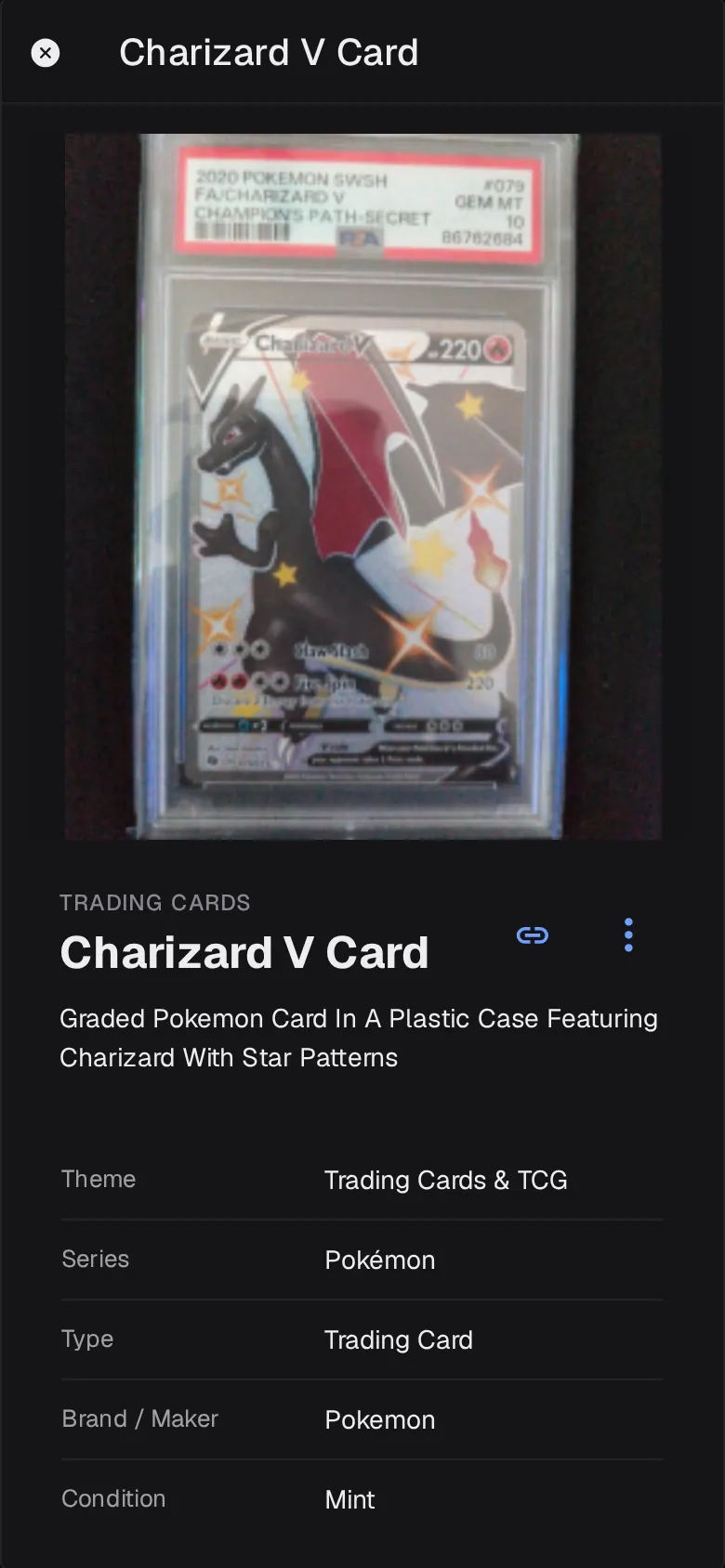
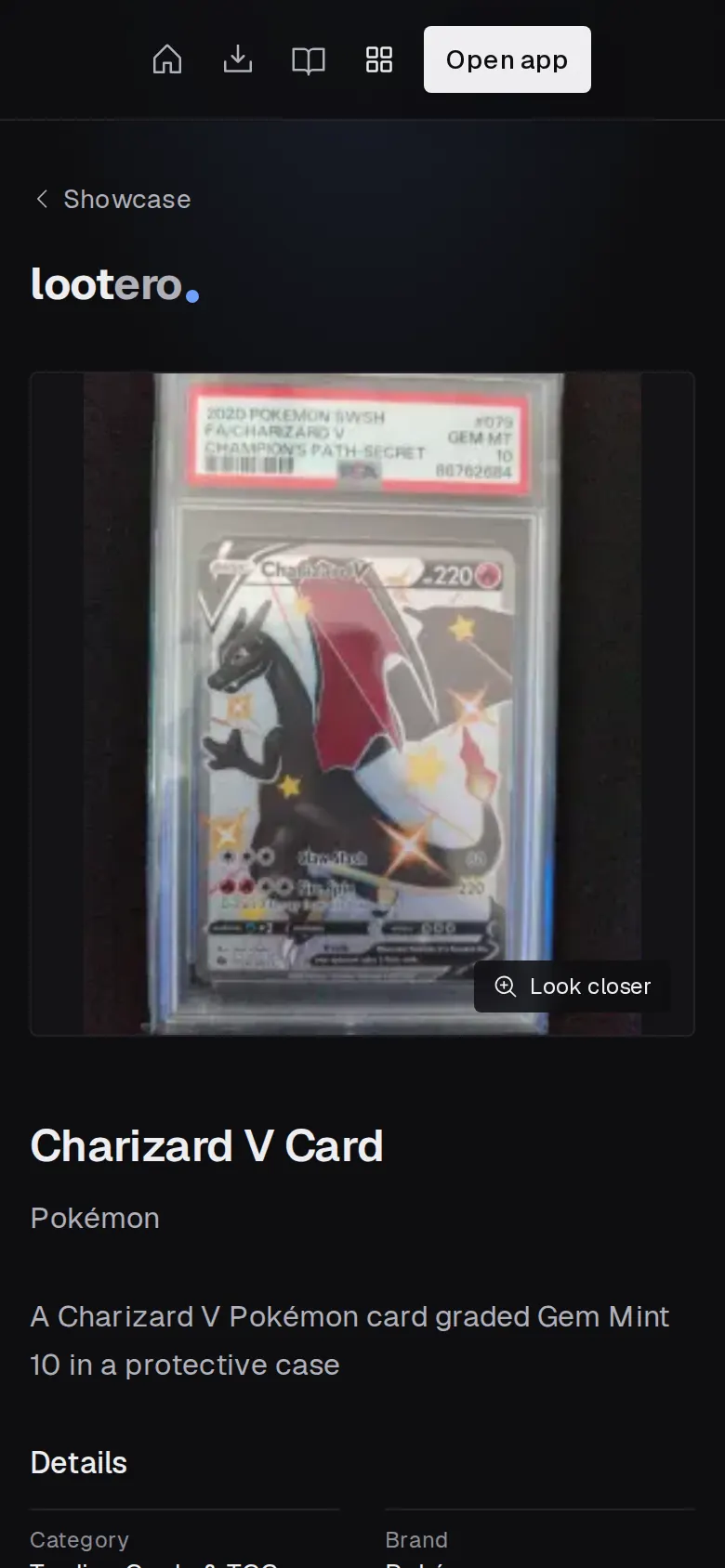
- Visible to others: the photo, name, description and details such as theme, series, maker, grade and year.
- Never shared: what you paid, the date you collected it, where you keep it, and its value.
To change one item, use the Public switch when editing it, or Make Public / Make Private in its Actions menu. To change a whole collection at once, open it, tap ⋮ and choose Make items public or Make items private.
Share a link to an item or collection
- Open the item or collection.
- Tap the link icon next to its name. Lootero copies a short link, like
social.lootero.com/i/…, to your clipboard. - Paste it into a message, a forum post or social media.
Anyone can open the link in a browser; they don't need Lootero. Only public items can be shared. If the item is private, Lootero offers to Make public & share; items without a photo can't be shared at all.