Part 1 of 9 · 4 min read · Updated 1 October 2026
Getting started with Lootero
Get the app (or use it in your browser), create a free account, and learn what lives on the Home screen and in each of the four tabs.
Get the app, or use it in your browser
Lootero is free and runs on your phone and on a computer. Your collection syncs between them, so you can add an item on your phone at a market and tidy up its details later at your desk.
- iPhone and iPad: download Lootero from the App Store.
- Android: get it on Google Play.
- Computer: open app.lootero.com in any modern browser. Nothing to install.
Create your free account
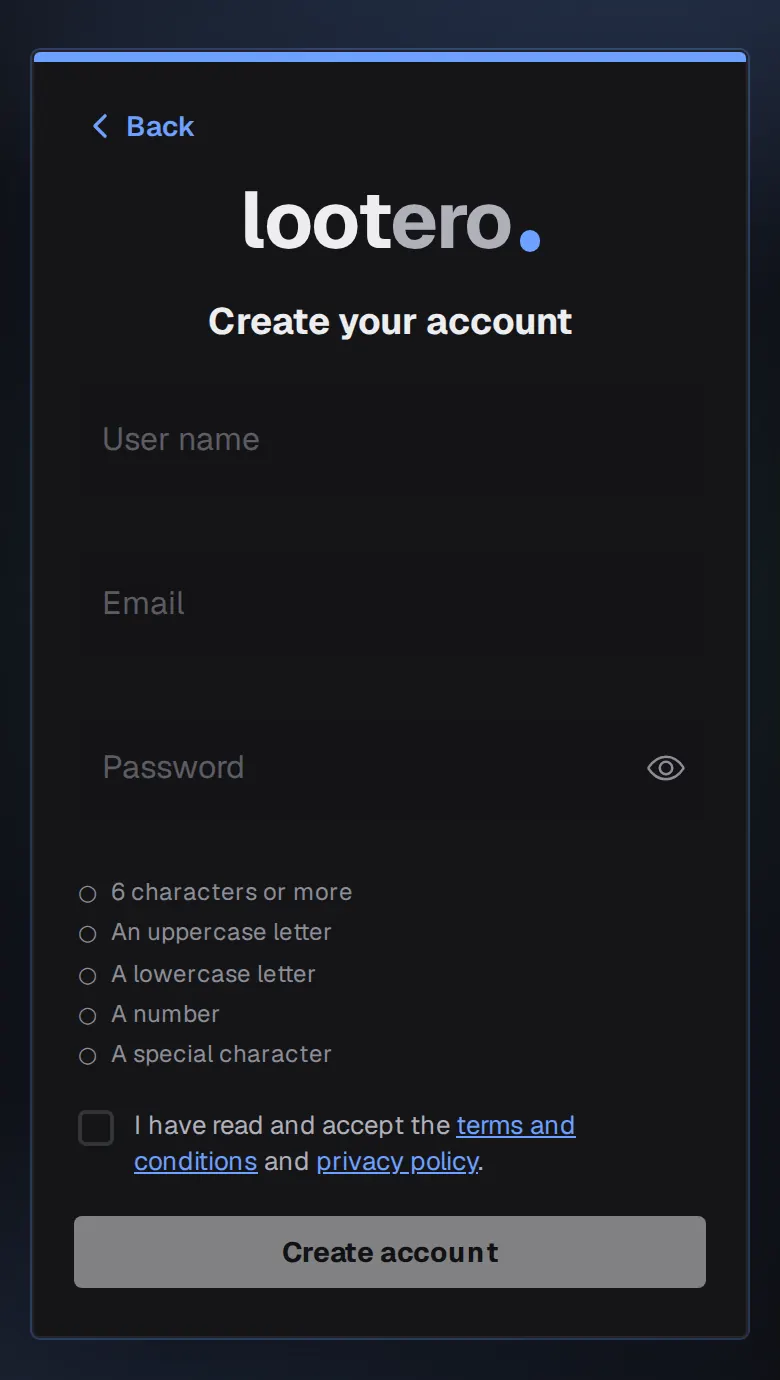
- Open Lootero and tap New here? Create an account under the Sign in button.
- Choose a User name. It must be at least 3 characters, letters and numbers only. This is what you sign in with, and it can't be changed later.
- Enter your Email and a Password. The checklist under the password ticks off each rule as you meet it: 6 characters or more, an uppercase letter, a lowercase letter, a number and a special character.
- Tick I have read and accept the terms and conditions and privacy policy. The Create account button stays greyed out until you do.
- Tap Create account. You're signed straight in, and Lootero sends you an email to verify your address.
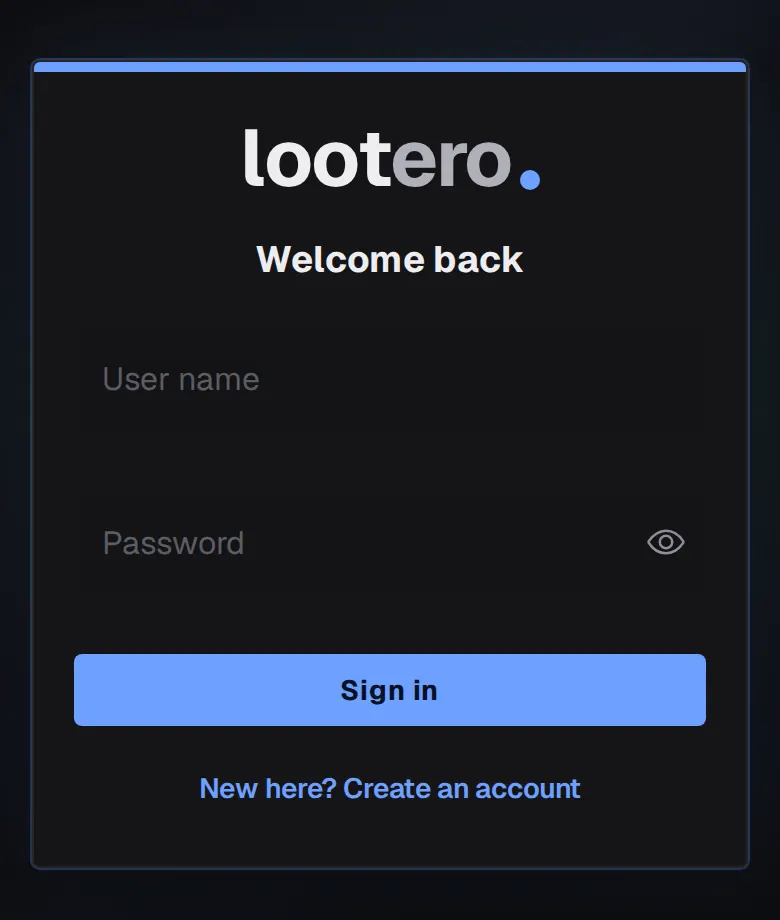
Next time, sign in with your user name and password. Capitals in the user name don't matter. Forgot your password? Tap Reset password after a failed attempt and Lootero emails you a reset link.
Your Home screen
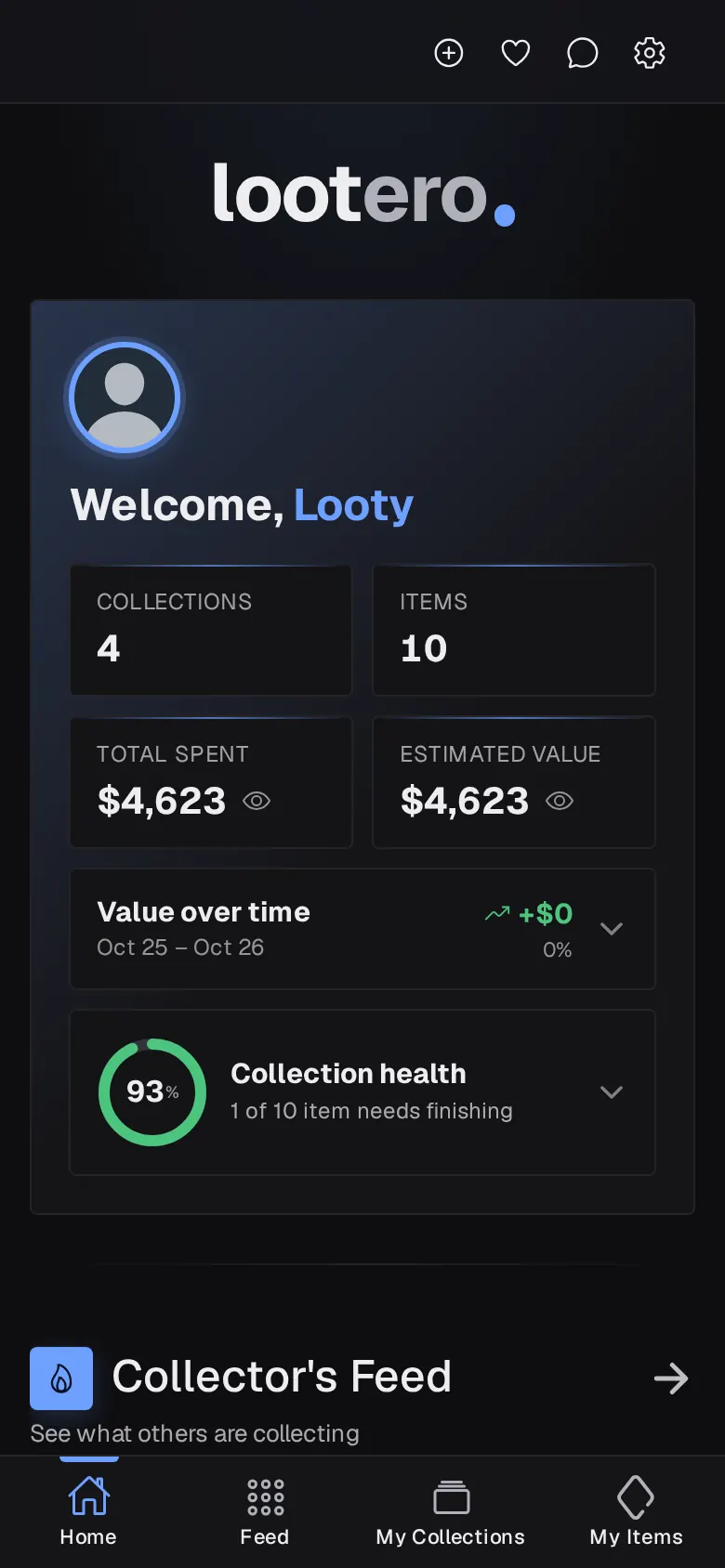
Home is your dashboard. Right after signing up it's quiet, and it fills in as you add things:
- Collections and Items: how many you have. Tap either to jump straight there.
- Total Spent and Estimated Value: what you paid for everything and what it's worth now. Tap the eye icon to hide the amounts, handy when you're showing your phone to someone.
- Value over time and Collection health: covered in tracking what your collection is worth.
- Collector's Feed: a moving strip of things other collectors have shared, with Top Collectors and trending themes below it.
- Your Collection Records and Latest Updates: highlights such as your most valuable item and oldest piece, and the ten items you changed most recently.
Find your way around
The bar along the bottom has four tabs:
- Home: the dashboard above.
- Feed: everything other collectors have made public. See the Collector's Feed.
- My Collections: your collections, the shelves your items sit on.
- My Items: every item across all your collections in one place. This tab appears once you've made your first collection.
Four icons sit at the top right of every screen: ⊕ to create a collection or item, ♡ for your Favourites, the speech bubble for Messages, and the gear for Settings. Tap the lootero wordmark at the top left to get back Home.
That's the whole map. Next, create your first collection.