Part 4 of 9 · 4 min read · Updated 1 October 2026
Organise, search and filter your items
My Items shows everything you own in one place. Search it, sort it, filter it by theme, maker or rarity, and edit, clone, remove or restore items as your collection changes.
Everything in one place
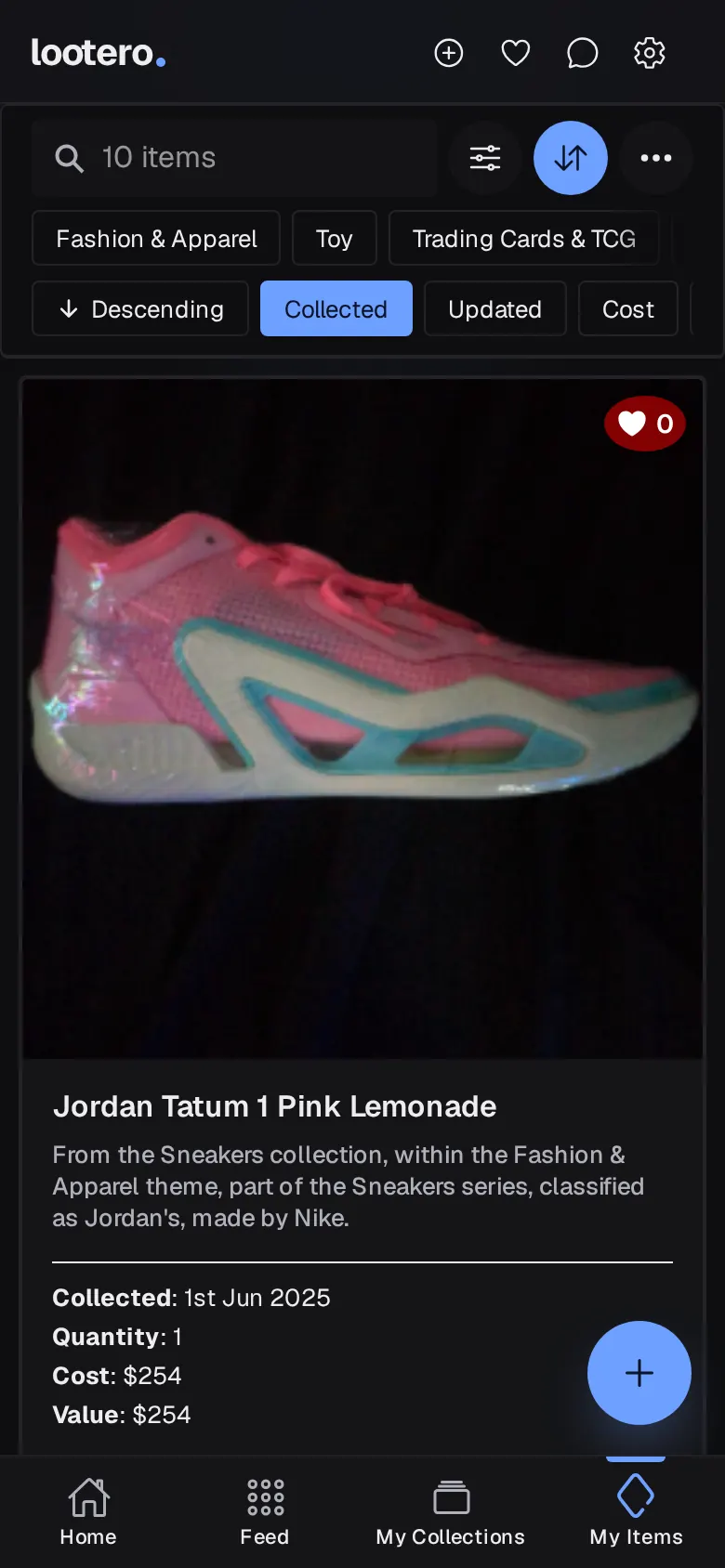
The My Items tab lists every item across all your collections. Each card shows the photo, name, a one-line summary, when you collected it, the quantity, what it cost and what it's worth, with an arrow when the value has moved. A small heart shows likes on public items, and a crossed-out eye marks private ones.
Prefer bigger or smaller cards? Switch Larger cards on or off in Settings. On a computer, the ⋯ menu also offers a Table view with every detail in columns.
Search, sort and filter
- Search: type in the bar at the top to find items by name.
- Theme chips: the row under the search bar shows one theme at a time.
- Sort (the up-and-down arrows): order by Collected, Updated, Cost, Value, Year or Unfinished (the items with most details missing first), and switch between Ascending and Descending.
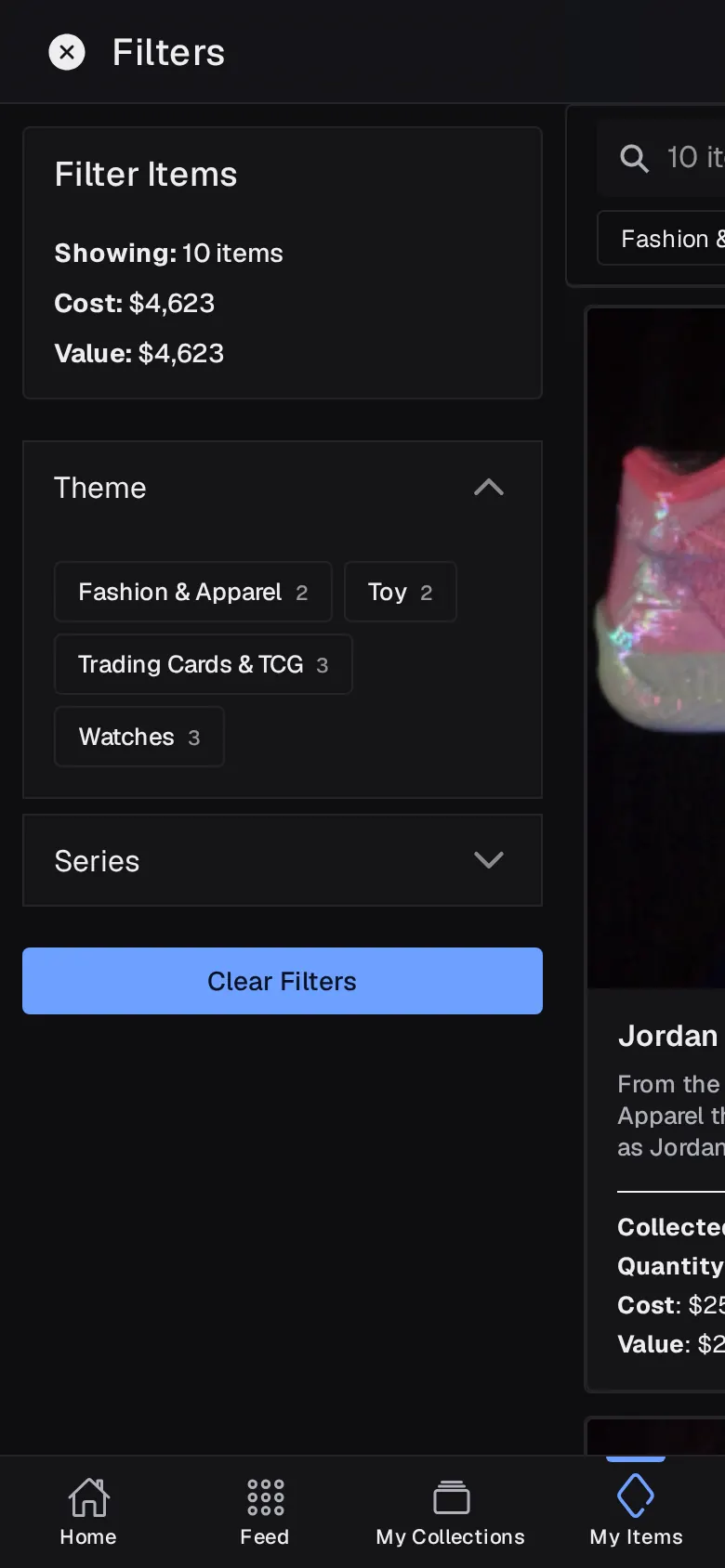
- Filter (the sliders): narrow down by Theme, Series, Country, Maker, Type, Colour, Location or Rarity. The panel shows how many items match and their total cost and value. Tap Clear Filters to start again.
Open an item
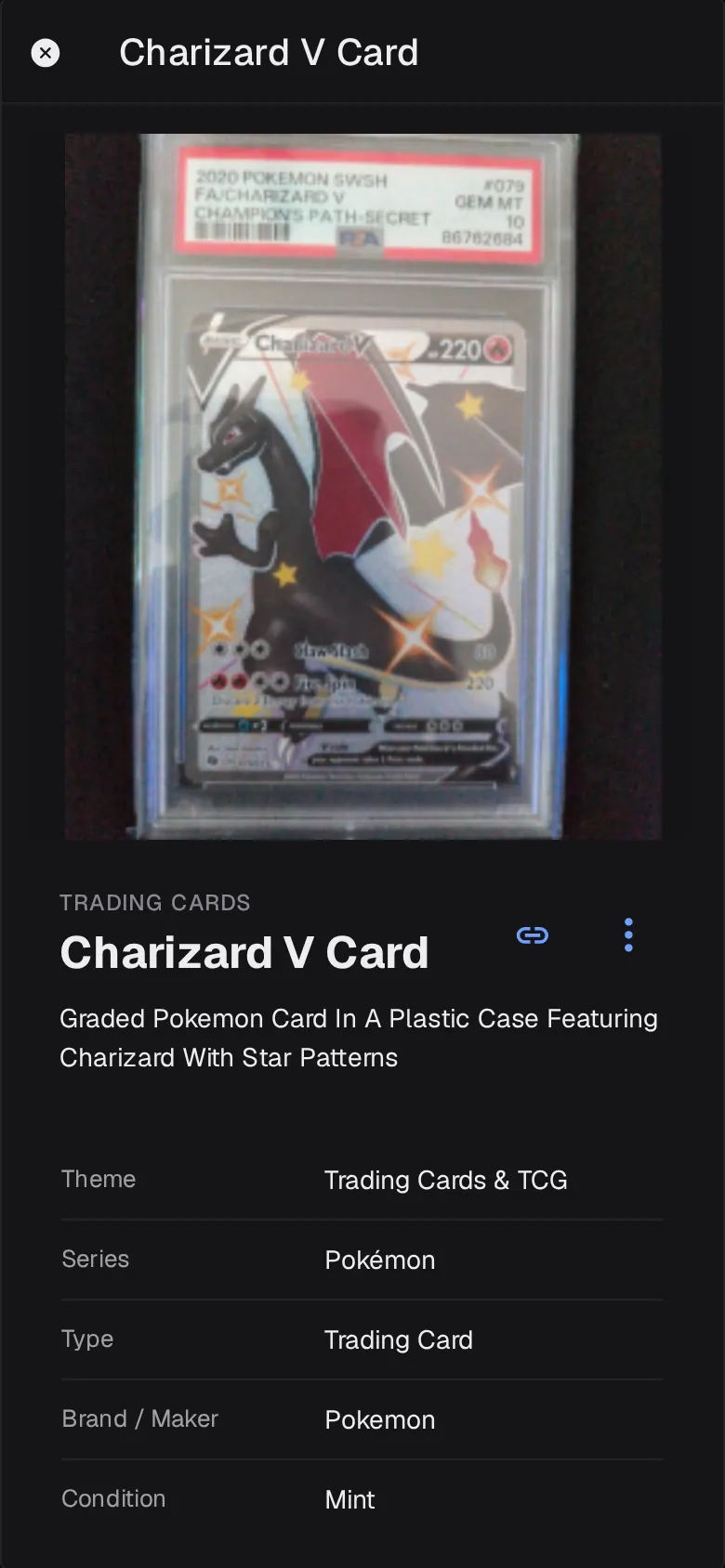
Tap any item to open it. You'll see the full photo (tap it to zoom), every detail you've recorded and the private Storage & Value section. If details are missing, a panel shows how complete the item is and what to add next; tap Add details to fill them in. Use the arrows to step to the next or previous item.
Edit, clone, remove or delete
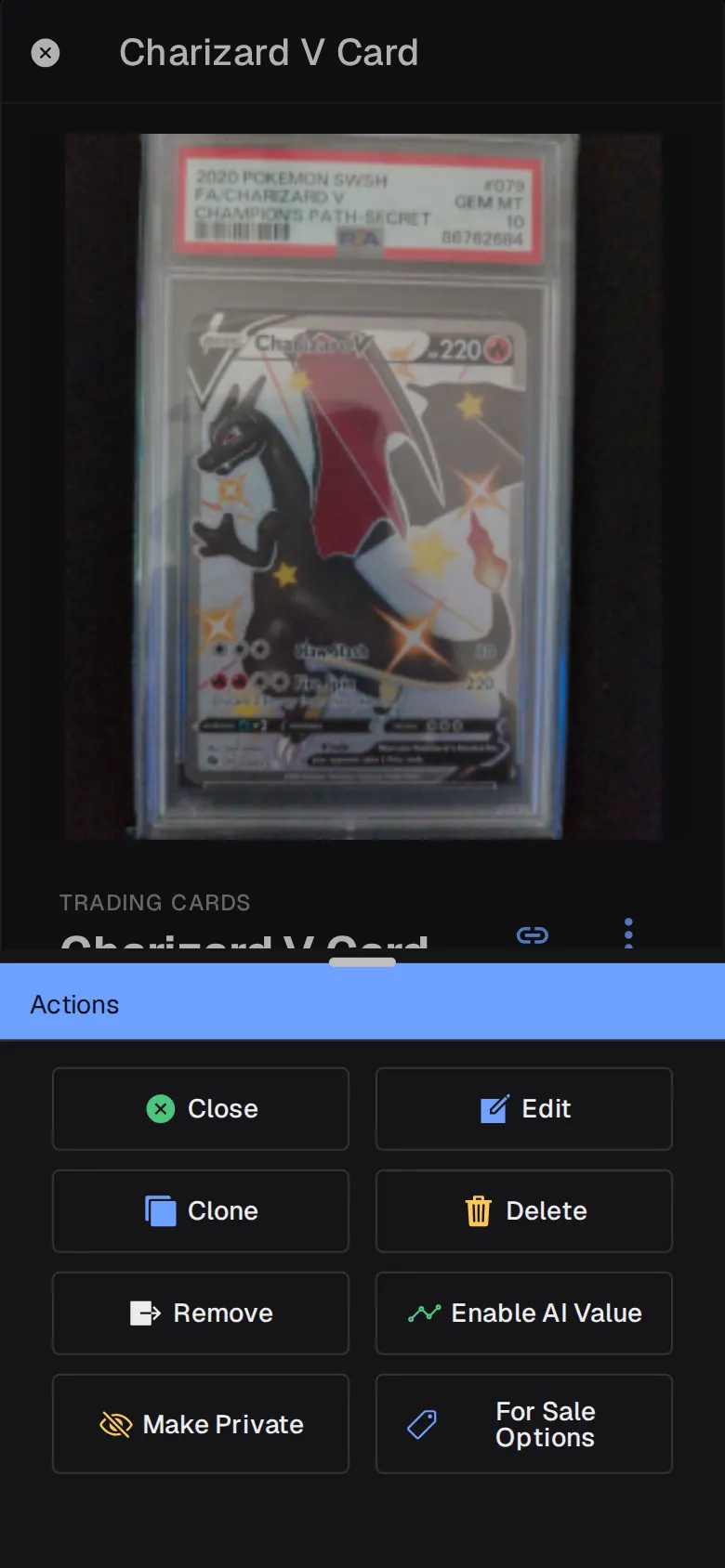
The ⋮ button on an item opens Actions:
- Edit: change the photo or any detail.
- Clone: make a copy, named “(Clone) …”. Handy for a set of near-identical items. It uses a credit.
- Remove: take the item out of your collection when you sell it, trade it or give it away. It moves to Removed with its history intact.
- Delete: erase the item for good. Lootero asks you to confirm first.
- Enable AI Value / Disable AI Value, Make Public / Make Private and For Sale Options: covered in the next parts of this guide.
Removed items are never lost
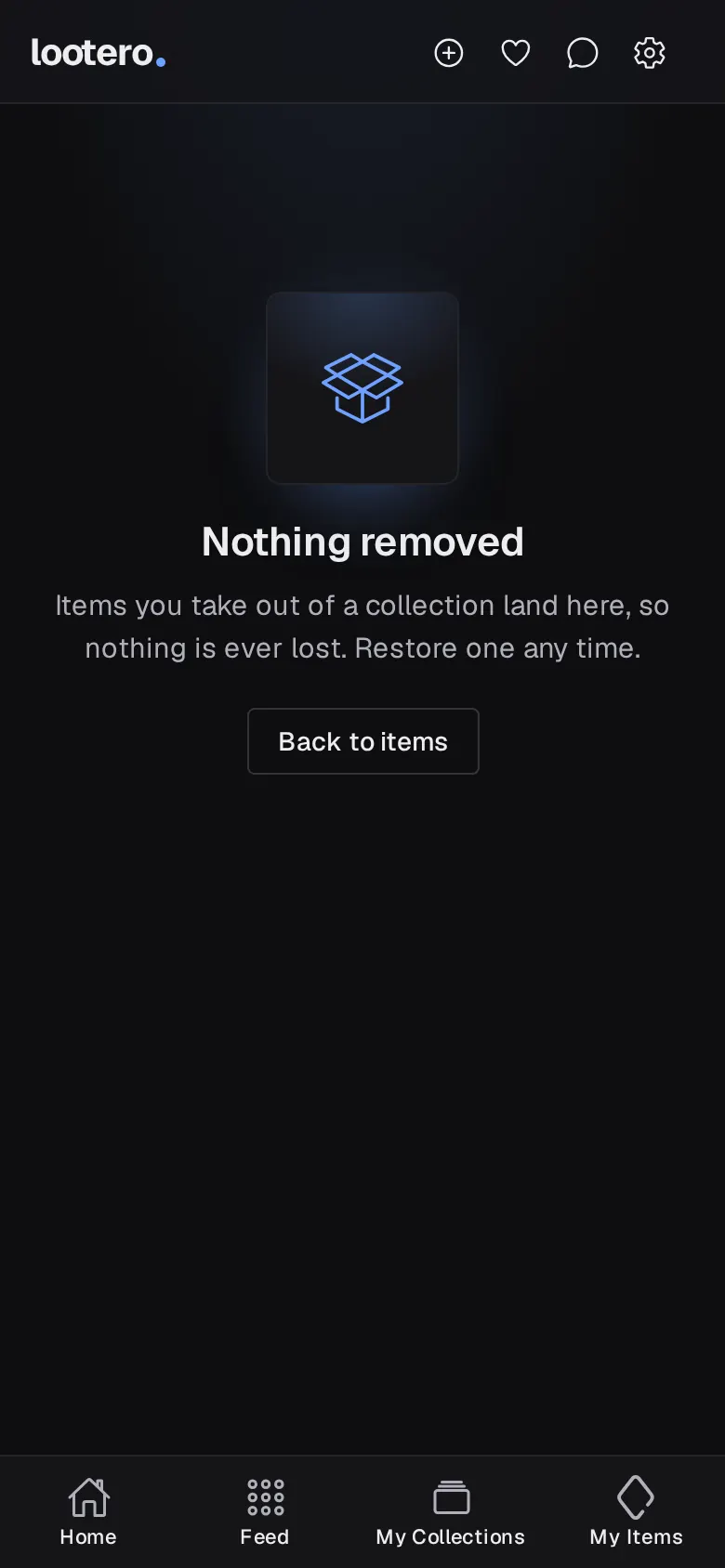
Removed items live in the Removed list: open it from the ⋯ menu on My Items (Removed items), or from the Removed tab inside a collection. Open a removed item and choose Restore to put it back, or Delete to erase it for good.